![How to Dictate on Apple Watch [Talk to Text]](https://www.notta.ai/pictures/apple-watch-dictation-cover.jpg)
How to Dictate on Apple Watch [Talk to Text]
A MagSafe button for iPhone 12 and above. Smart Polish and Attune deliver finished text in iMessage, Gmail, Slack, or any iOS app.
I'm always looking for new Apple Watch features that make it easier to get things done on the go. And with no shortage of features available in the iOS ecosystem, I can afford to be choosy. So can you. I've been an Apple Watch user since the early days, and over the past years, I've done so much cool stuff to improve productivity.
Out of all the features, I really love the Apple Watch dictation that helps me respond to a message, create notes, or perform any other text-related task quickly. I spent a day testing the dictation feature of the Apple Watch and reviewed how to quickly convert the voice to text. Here's everything you need to know to get started.
How to enable dictation on Apple Watch
Most newer generations of Apple Watch support the dictation feature — though you need a compatible iPhone to convert voice to text. Here's how to enable dictation on Apple Watch and iPhone.
First, open the ‘Settings’ app on your iPhone and select General > Keyboard. Scroll until you find the dictation option and turn on the toggle next to ‘Enable Dictation.’
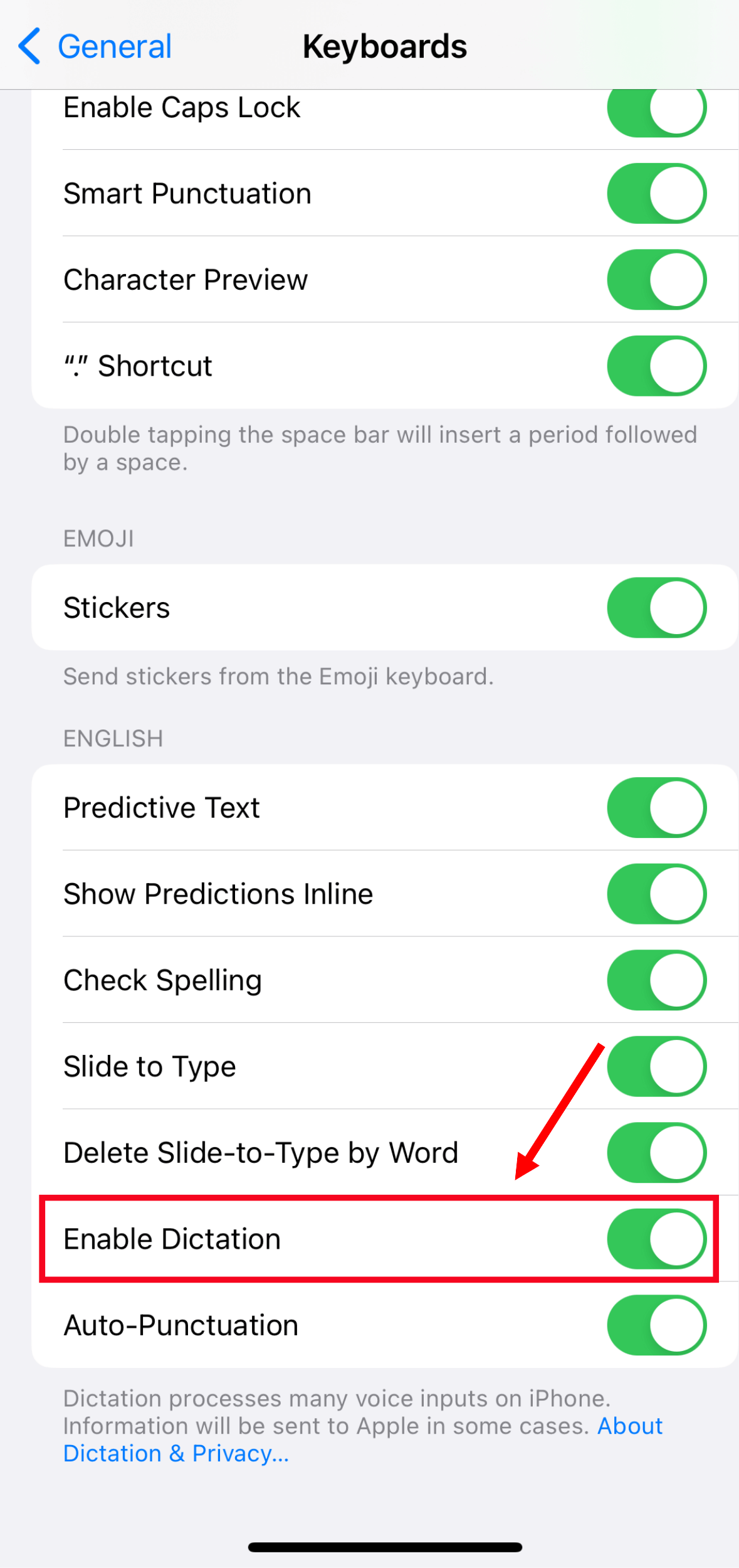
Similarly, you'll need to head to the ‘Settings’ app on the Apple Watch, followed by ‘General.’ Under the ‘Keyboard’ section, turn on the ‘Enable Dictation’ feature.

SpeakON is a MagSafe button for iPhone 12+ that turns voice into ready-to-send text in any iOS app.
How to use dictation on Apple Watch
Just like other Apple devices (iPhone, iPad, or Mac), Apple Watch also comes with a built-in dictation feature. You can compose an email, create a note, or send a message by using this voice-to-text feature — without typing anything. Here's how to use the Apple Watch talk-to-text feature.
Step 1: Open the application where you'd like to dictate. For example, if you want to send a message on Apple Watch using the dictation feature, open the Messages app (as shown in the below image). On the other hand, if you want to draft a response to an email using a voice-to-text feature, open the Email app.
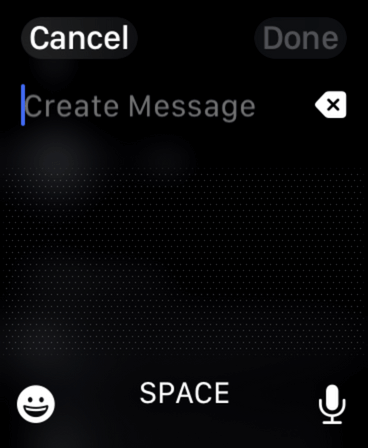
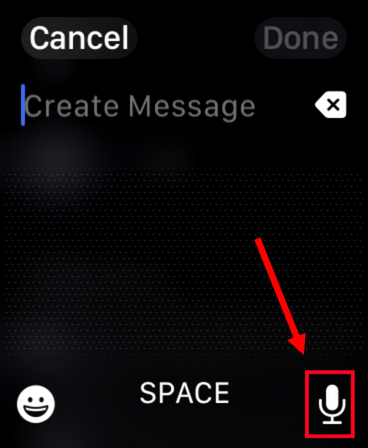
Step 2: Click on the ‘Microphone’ icon, which is generally located at the bottom-right corner of the Apple Watch screen.
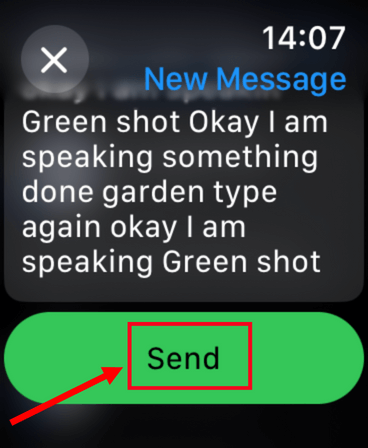
Step 3: Start speaking your message, and the Apple Watch dictation feature will convert the voice to text. Always make sure to double-check the transcribed text before hitting the ‘Send’ button.
Dictation not working on Apple Watch: How to fix
There are many advantages of using dictation or voice-to-text apps — and while they can help you get work done faster, sometimes things can go wrong. If the Apple Watch dictation is not working, it's important to know how to fix it. Here are some common troubleshooting methods you can follow to get things back on track quickly.
Turn off your Apple Watch: The simple way to troubleshoot a lot of issues, including dictation features in your iOS device, is by shutting down and turning it back on.
Force restart: If your device has some stubborn tech issues, you may force restart the Apple Watch. For this, you can simply press and hold the Digital crown along with the side button for nearly 10 seconds until the Apple logo appears.
Close and reopen apps: If any particular app on your Apple Watch experiences an issue with dictation, try closing and then reopening the application.
Check the microphone: When the screen protector blocks the microphone port on the Apple Watch, it may distort the voice. As a result, the speech-to-text engine will experience some issues. For quick troubleshooting, simply remove anything that could obstruct the microphone.
Unpair and pair devices again: Apple Watch dictation works only when you pair the device with an iPhone — but when the pairing experiences any issue, you might not be able to use the feature. In order to complete the troubleshooting, unpair the Apple Watch and then pair it again.
Update iPhone and Apple Watch: One last thing you might try is updating the iPhone and Apple Watch to the latest version. When updating an iPhone, it usually triggers an update for the Apple Watch, too. If it doesn't update automatically, you can do it manually.
Looking for a Different Voice Input Setup on iPhone?
Apple Watch dictation works for quick replies, but most longer messages still end up on iPhone. If that's where most of your typing actually happens, it's worth knowing about a hardware option built specifically for that use case.
SpeakON is a MagSafe button for iPhone (iPhone 12 and above — not compatible with Apple Watch). It clips to the back of the phone and has its own dedicated microphone. Press the button, speak naturally, and polished, ready-to-send text lands directly in whichever app is on screen — iMessage, WhatsApp, Gmail, Notes, Slack, LinkedIn, or any other iOS app with a text field.
What makes it different from the built-in mic icon
One-press activation — no unlocking the phone, no tapping the keyboard mic, no app-switching.
Smart Polish — filler words and verbal tics get cleaned up automatically; the output reads like text someone actually wrote, not a raw transcript.
Attune tone engine — four modes (Off, Casual, Professional, Formal). The same spoken sentence comes out shaped for the app you're in: Casual for iMessage, Professional for Slack, Formal for email.
13 languages with real-time translation built in.
Who it's built for
Founders, VCs, consultants, and other professional communicators who send a lot of high-stakes messages on the go. If most of what you tap out on iPhone would benefit from being polished before it's sent, SpeakON is built for that moment.
FAQs
How do I change the dictation language on my Apple Watch?
Apple Watch supports many dictation languages, including Arabic, English, French, Dutch, Korean, Japanese, and Telugu. Here's how to change the dictation language on your Apple Watch.
On your iPhone: Go to the ‘Settings’ option and then select Siri & Search > Language.
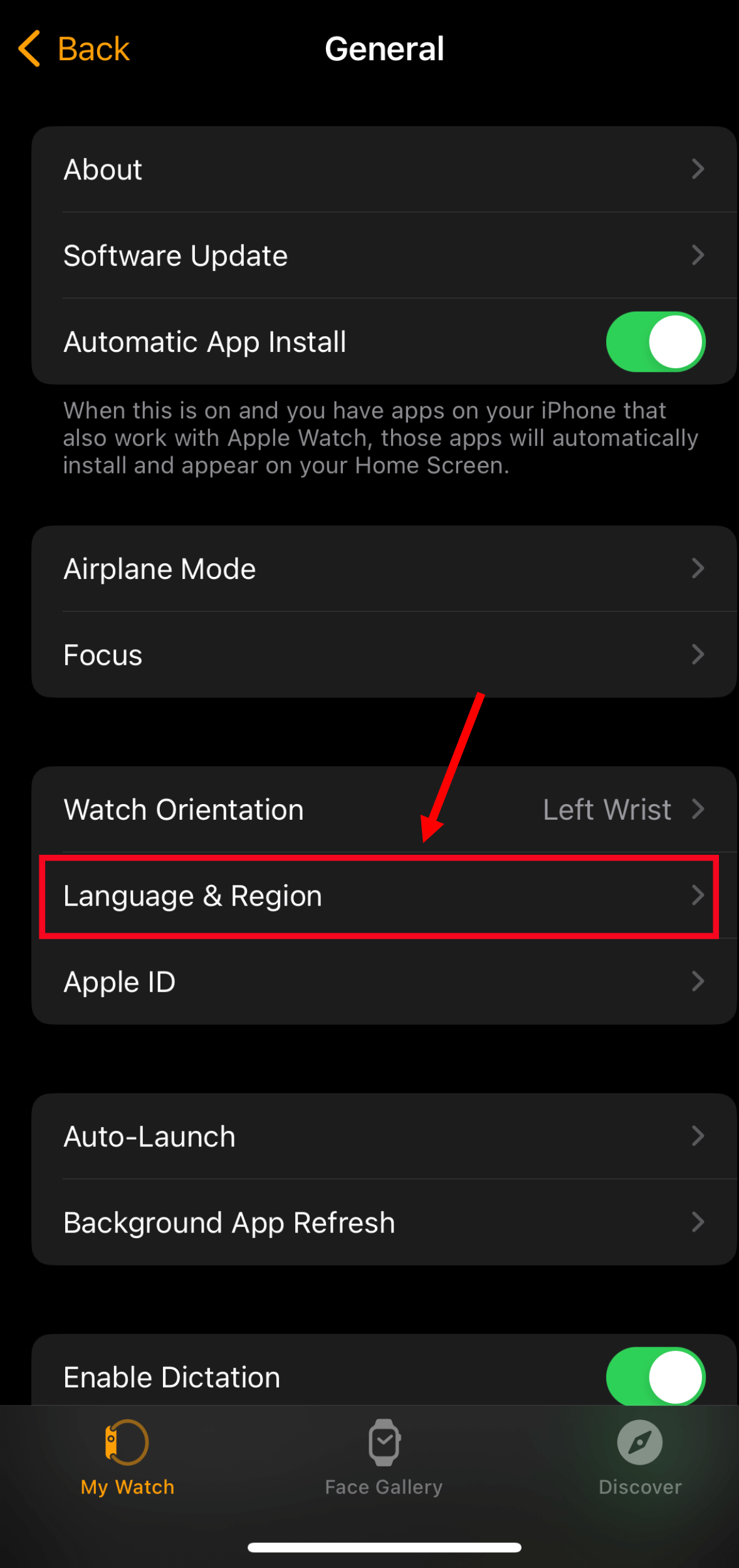
The next step is to open the My Watch app on your iPhone and click General > Language & Region > Watch Language. Here, you can change the language to match it with Siri's language.
How do I insert punctuation with Siri and Apple Watch dictation?
Apple Watch's built-in dictation feature can handle the punctuation in the transcribed text. When dictating the message to Siri on the Apple Watch, all you'll need to do is include the punctuation cues as you speak.
For example, if you want to write ‘Hello, John. How is everything going on your end?’ you need to say, ‘Hello comma John full stop how is everything going on your end question mark.’
What applications support dictation on Apple Watch?
There are many Apple Watch applications that support dictation. Here's a quick overview of them:
Apple Watch users can dictate and send text messages to their contacts from the Messages app.
The built-in speech-to-text feature helps compose and even send emails via the Mails app.
It's pretty easy to dictate notes and also create text-based reminders with the Notes app.
You can dictate to-do lists and tasks, which can then be converted to text.
Some third-party apps integrated with Siri and voice dictation also support Apple Watch dictation.
Key takeaways
Apple Watch dictation is genuinely useful for short, in-the-moment replies — but it has limits. For longer or more carefully-worded messages, most people still switch to iPhone. Knowing how to enable it, troubleshoot when it breaks, and when to reach for a different tool is the full picture.
If you find yourself constantly finishing on iPhone anyway, a hardware button like SpeakON is worth a look — it's a different path to the same outcome, just without tapping mic icons and cleaning up transcripts afterwards.

